> ## Documentation Index
> Fetch the complete documentation index at: https://statsig-4b2ff144-devin-1763168466-llm-docs-audit.mintlify.site/llms.txt
> Use this file to discover all available pages before exploring further.
# Adding Rules
> Learn how to add targeting rules to dynamic configs to control which users receive specific configurations
## Add a rule to a dynamic config
To add new user targeting rules to a dynamic config,
* Log into the Statsig console at [https://console.statsig.com](https://console.statsig.com)
* On the left-hand navigation panel, select **Dynamic Configs**
* Select the dynamic config where you want to add a rule
* Click the **Add Targeting** button
* Click the **Add New Rule** button
* Select the criteria for identifying the users you want to target:
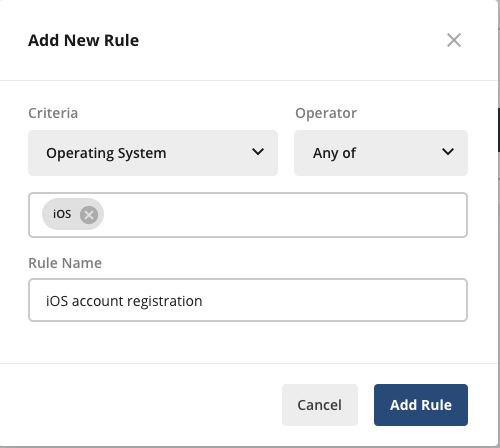
* You can target users based on common attributes such as their operating system as shown in the following example
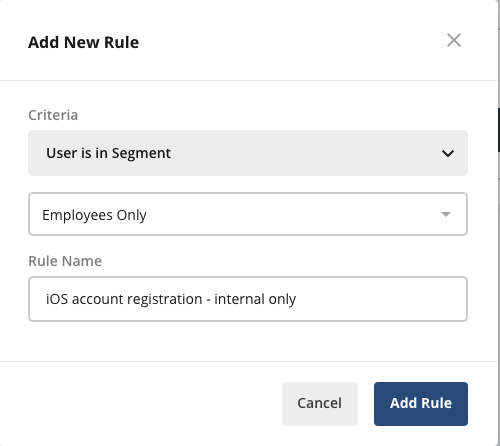
 * You can target users in a defined [segment](/segments) as shown in the following example
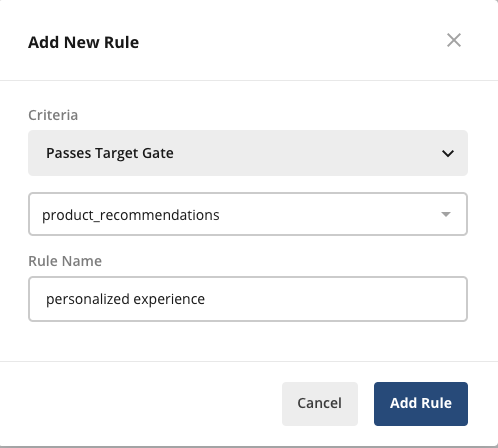
 * You can target users who are eligible for a specific feature flag as shown in the following example; this ensures that the dynamic config is activated only for users who're exposed to the target feature flag
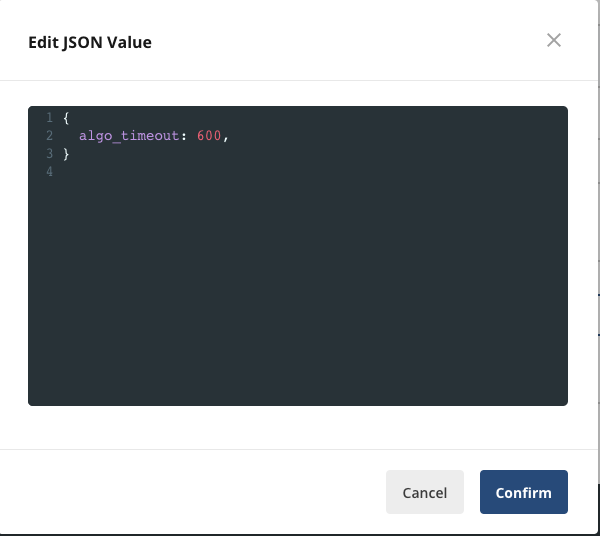
 * To complete the dynamic config, click on the **Edit** link to open the JSON configuration editor. In the editor, type the configuration parameters and values that your application should receive and click **Confirm**