> ## Documentation Index
> Fetch the complete documentation index at: https://statsig-4b2ff144-devin-1763168466-llm-docs-audit.mintlify.site/llms.txt
> Use this file to discover all available pages before exploring further.
# Reusable Targeting with User Segments
> User Segments allow you to predefine targeting groups for re-use in Feature Gates and Dynamic Configs. Think of it as a reusable macro for a set of us
User Segments allow you to predefine targeting groups for re-use in Feature Gates and Dynamic Configs. Think of it as a reusable macro for a set of users.
Need an easy way to roll things out to just your team/org/company? Create a segment, and use a "User is in Segment" or "User is not in Segment" condition
in a Feature Gate or Dynamic Config. Let's go through an example. This guide will walk through creating an example segment to identify our internal users, and then using that segment in a new feature we are building.
## Step 1: Creating a Segment
Start by navigating to the "Segments" tab in the console:
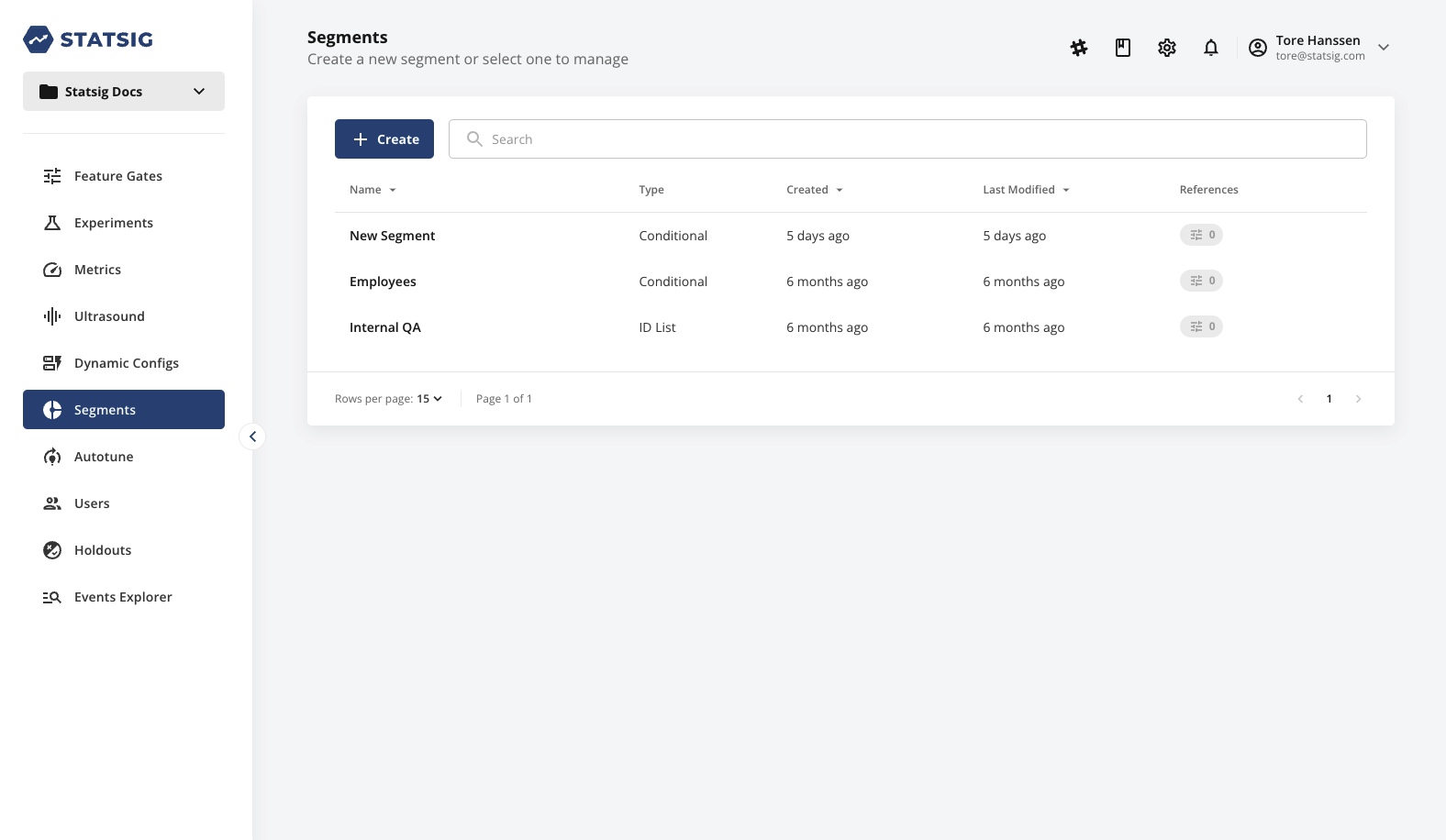 Then click "Create New." Lets call it "Internal Stakeholders:"
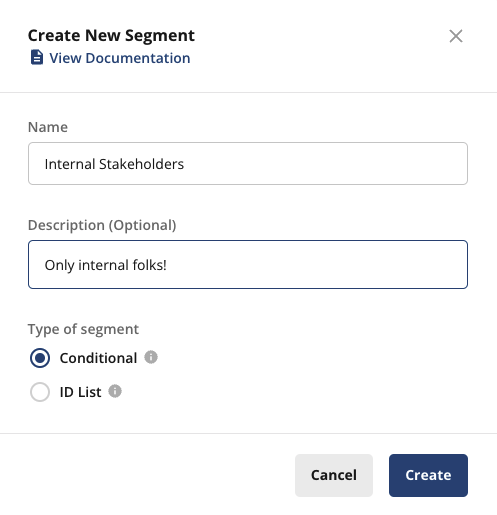 There are two types of segments:
* "Conditional Segments" which operate on a similar set of conditions as Feature Gates and Dynamic Configs
* ID Lists, which allow you to predetermine larger lists of userIDs or a particular customID to pass the segment.
For now, lets create a conditional segment, and click "Create."
We will start by adding a condition to target people on our internal environments:
There are two types of segments:
* "Conditional Segments" which operate on a similar set of conditions as Feature Gates and Dynamic Configs
* ID Lists, which allow you to predetermine larger lists of userIDs or a particular customID to pass the segment.
For now, lets create a conditional segment, and click "Create."
We will start by adding a condition to target people on our internal environments:
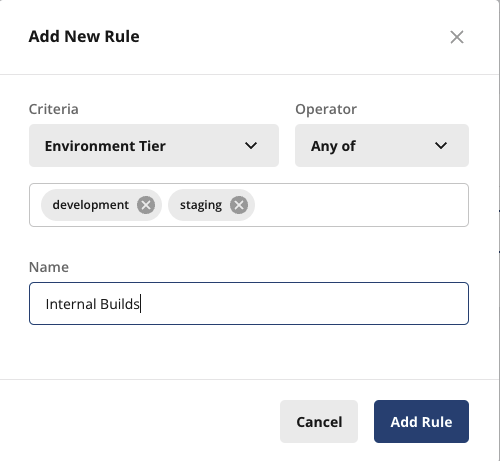 Notice that unlike a Feature Gate, you cannot configure the pass percentage for a rule. Segments are meant to represent all of the users matching a certain set of rules, but when you create a Feature Gate rule based on a segment, you can configure the pass percentage there. We will get there in a moment.
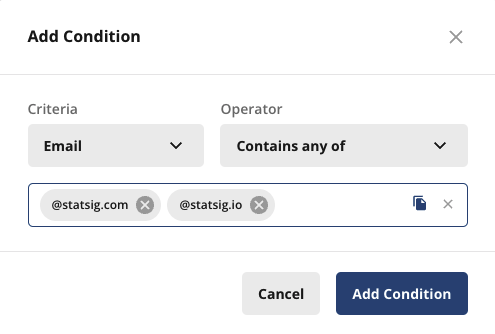
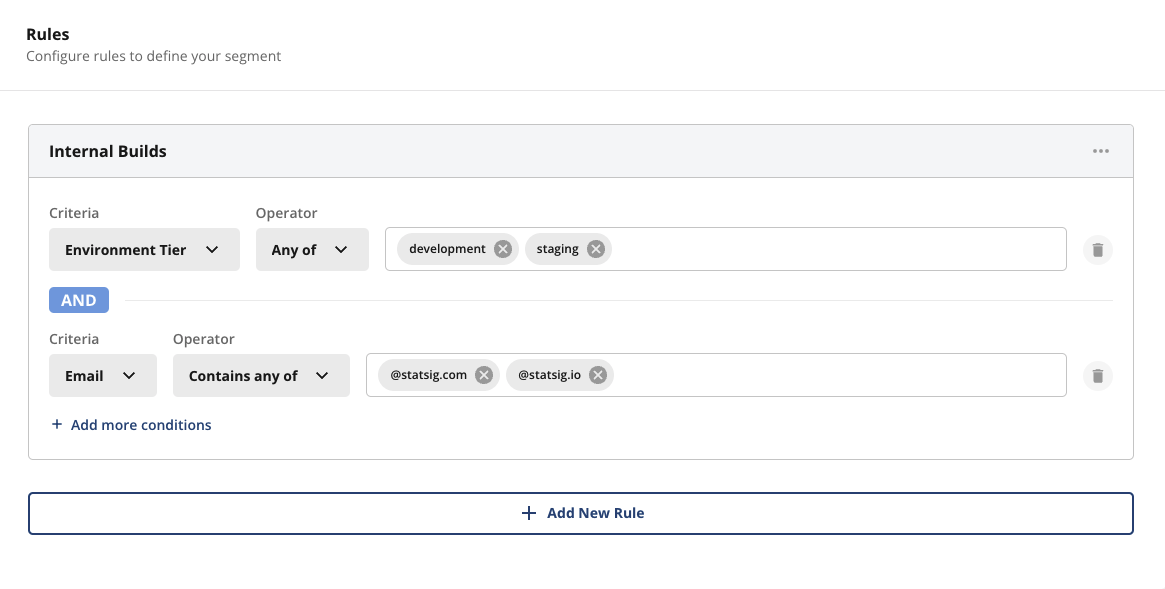
Next, lets add another condition to that same rule. Click "Add more conditions", and then use an "email" "contains any of" condition to target internal employees:
Notice that unlike a Feature Gate, you cannot configure the pass percentage for a rule. Segments are meant to represent all of the users matching a certain set of rules, but when you create a Feature Gate rule based on a segment, you can configure the pass percentage there. We will get there in a moment.
Next, lets add another condition to that same rule. Click "Add more conditions", and then use an "email" "contains any of" condition to target internal employees:
 :::note
Adding an additional condition to the same rule enforces that both pass - the conditions are evaluated as an AND operation.\
If you wish to create multiple conditions where any of them can pass as an OR operation, you can add a new rule.
:::
Don't forget to "Save Changes" after adding those! Your Segment should look like this:
:::note
Adding an additional condition to the same rule enforces that both pass - the conditions are evaluated as an AND operation.\
If you wish to create multiple conditions where any of them can pass as an OR operation, you can add a new rule.
:::
Don't forget to "Save Changes" after adding those! Your Segment should look like this:
 ## Step 2: Using a segment
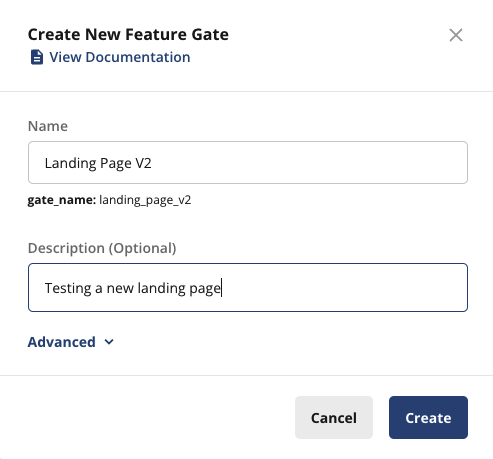
Now, lets make a gate for our new feature, "Landing Page Redesign". Navigate to "Feature Gates" and click "Create New"
## Step 2: Using a segment
Now, lets make a gate for our new feature, "Landing Page Redesign". Navigate to "Feature Gates" and click "Create New"
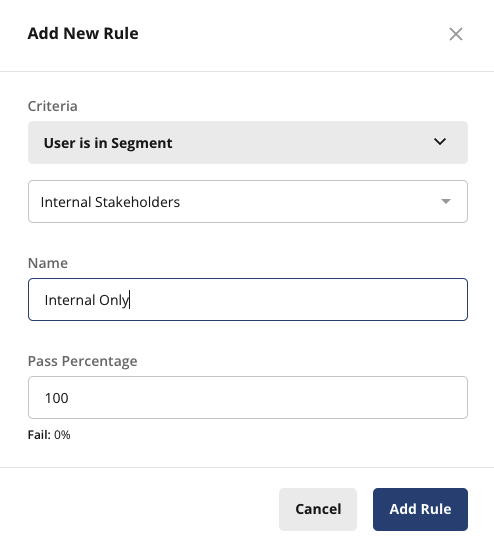
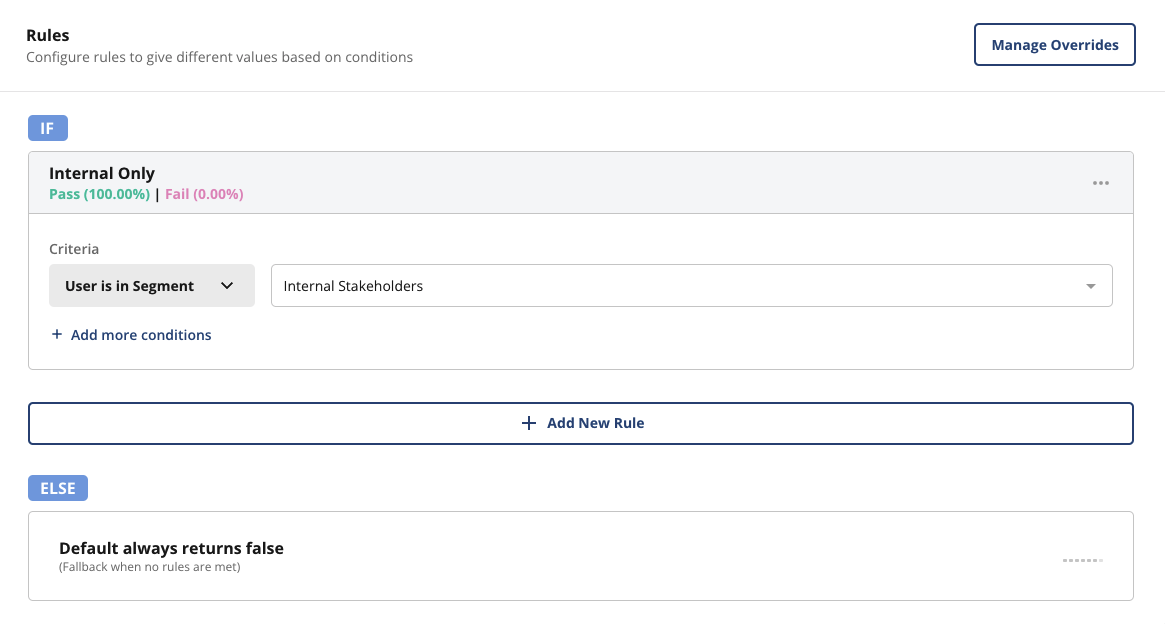
 Since this feature isn't ready for the public, lets gate it to our internal stakeholders using the Segment we just created.
Click "Add New Rule"
Since this feature isn't ready for the public, lets gate it to our internal stakeholders using the Segment we just created.
Click "Add New Rule"
 Again, remember to "Save Changes"
 ## Step 3: Test it!
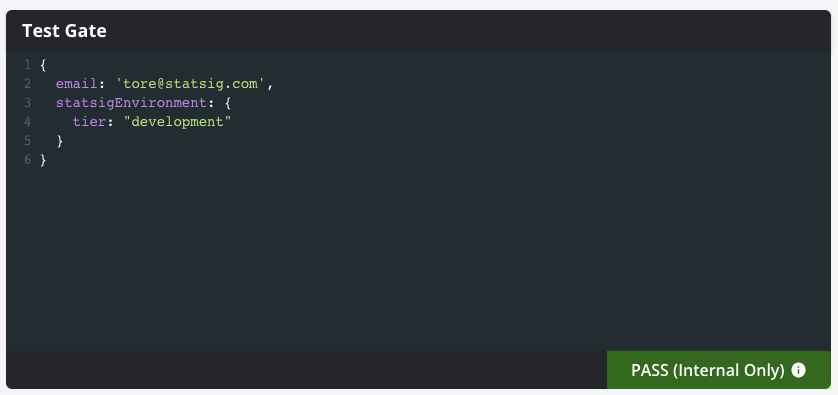
Fill in the test gate console with any random user input. You won't be able to get this gate to pass until you pass in a user with an email ending
in `statsig.com` or `statsig.io` AND a `development` or `staging` environment like this. If you remove either of those, you should see it fail.
```json theme={null}
{
email: 'tore@statsig.com',
statsigEnvironment: {
tier: "development"
}
}
```
## Step 3: Test it!
Fill in the test gate console with any random user input. You won't be able to get this gate to pass until you pass in a user with an email ending
in `statsig.com` or `statsig.io` AND a `development` or `staging` environment like this. If you remove either of those, you should see it fail.
```json theme={null}
{
email: 'tore@statsig.com',
statsigEnvironment: {
tier: "development"
}
}
```
 Now you can reuse this Segment in as many Feature Gates or Dynamic Configs as you want to gate your internal features while they are under development.