> ## Documentation Index
> Fetch the complete documentation index at: https://statsig-4b2ff144-devin-1763168466-llm-docs-audit.mintlify.site/llms.txt
> Use this file to discover all available pages before exploring further.
# Getting Started
> Start by installing the Statsig Azure AI SDK. Depending on your language/framework you would use the right package manager to install the SDK in your
## Step 1: Install the SDK in your server app
Start by installing the Statsig Azure AI SDK. Depending on your language/framework you would use the right package manager to install the SDK in your project
````shell theme={null}
npm i @statsig/azure-ai
```text
```shell
pip install azureai-statsig
```text
```shell
dotnet add package StatsigAzureAI
```ruby
## Step 2: Create a model deployment in Azure AI Studio
Log into your Azure AI Studio console and create a new deployment that you'd like to use.
 Once confirmed, you will be taken to the details page of that model.
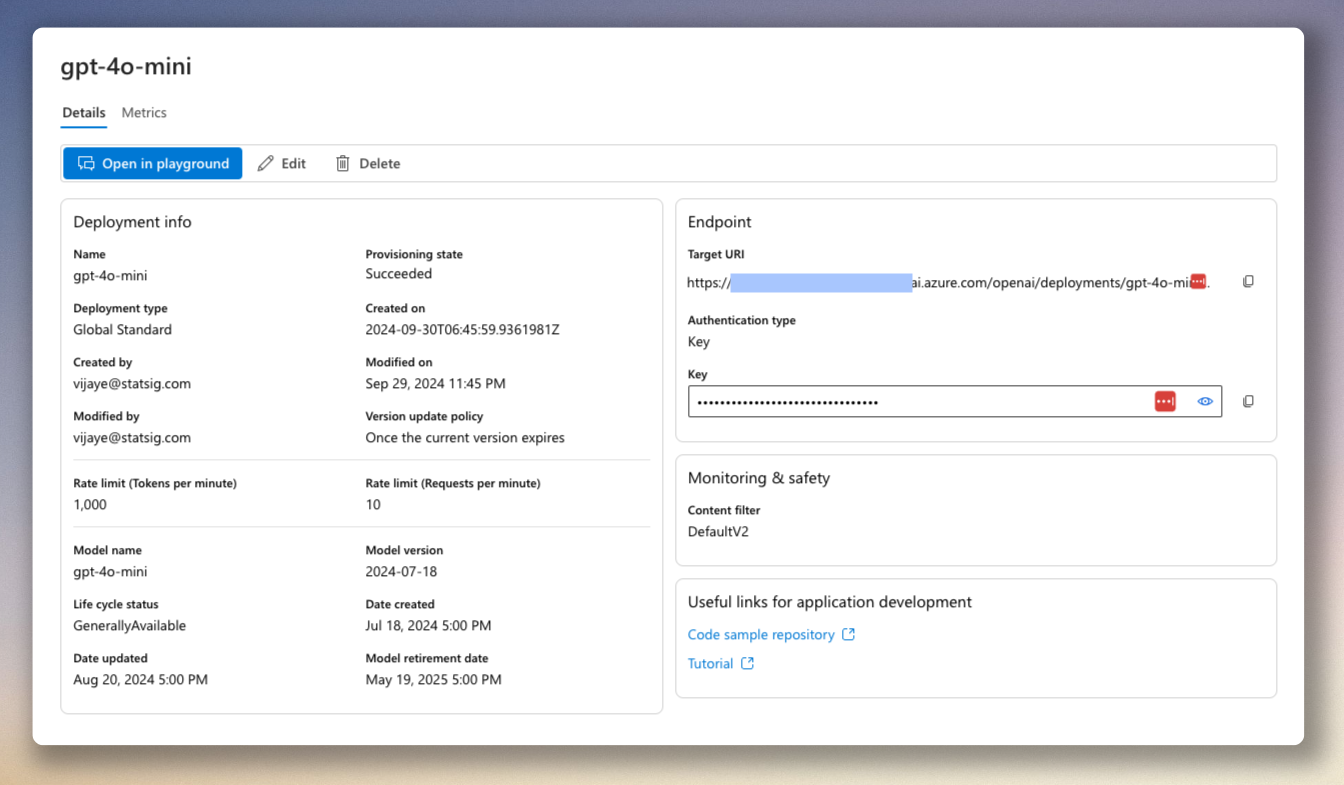 Now, copy the **Target URI** (this will be your _endpoint_ in code) and the **Key** - you'll need this in the SDK to call the APIs.
## Step 3: Get Statsig server SDK key
This guide assumes you have an existing Statsig account. Please go here to create a new free account if you don't already have one: https://statsig.com/signup
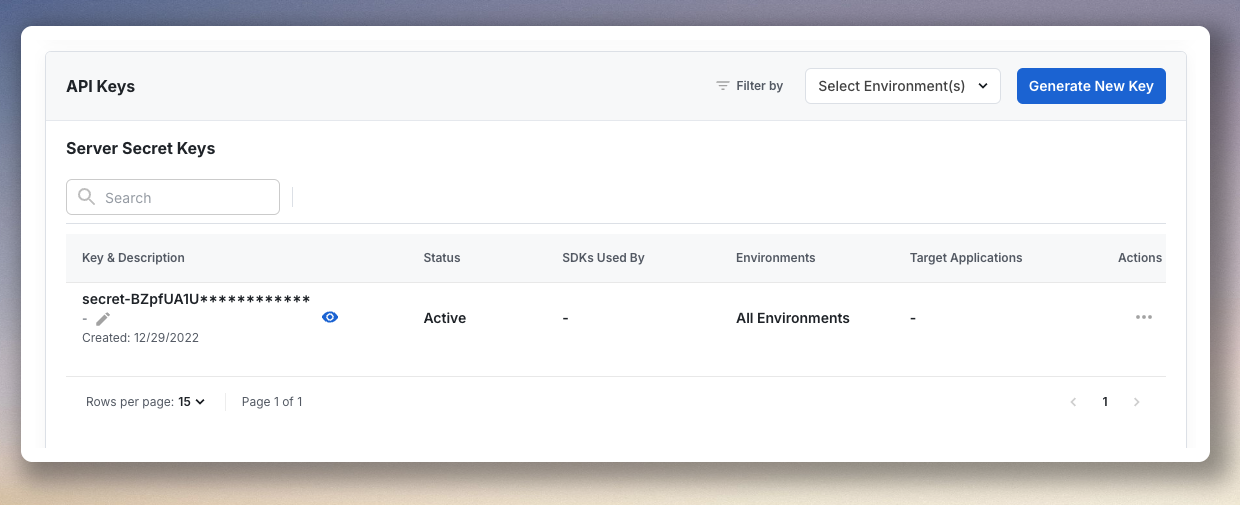
Go to your **Project Settings** and choose the **Keys & Environments** tab on the left. Scroll down to **API Keys** section and copy the Server Secret Key. If one doesn't exist, you will have to create one, or ask your project admin to create one for you.
Now, copy the **Target URI** (this will be your _endpoint_ in code) and the **Key** - you'll need this in the SDK to call the APIs.
## Step 3: Get Statsig server SDK key
This guide assumes you have an existing Statsig account. Please go here to create a new free account if you don't already have one: https://statsig.com/signup
Go to your **Project Settings** and choose the **Keys & Environments** tab on the left. Scroll down to **API Keys** section and copy the Server Secret Key. If one doesn't exist, you will have to create one, or ask your project admin to create one for you.
 ## Step 4: Initialize Azure AI Server
```js
import { AzureAI } from "@statsig/azure-ai";
await AzureAI.initialize("");
```text
```python
AzureAI.initialize("")
```text
```csharp
using Statsig;
using Statsig.AzureAI;
await Server.Initialize("");
````
## Step 4: Initialize Azure AI Server
```js
import { AzureAI } from "@statsig/azure-ai";
await AzureAI.initialize("");
```text
```python
AzureAI.initialize("")
```text
```csharp
using Statsig;
using Statsig.AzureAI;
await Server.Initialize("");
````