> ## Documentation Index
> Fetch the complete documentation index at: https://statsig-4b2ff144-devin-1763168466-llm-docs-audit.mintlify.site/llms.txt
> Use this file to discover all available pages before exploring further.
# Data Warehouse Exports
> You can export your data from Statsig to your Data Warehouse with a Data Connection. This lets you send exposures and events directly to your warehous
## Introduction
You can export your data from Statsig to your Data Warehouse with a Data Connection. This lets you send exposures and events directly to your warehouse for further analysis. We currently support connections to the following providers:
1. Snowflake
2. Redshift
3. S3
4. BigQuery
5. Databricks
## How to Begin
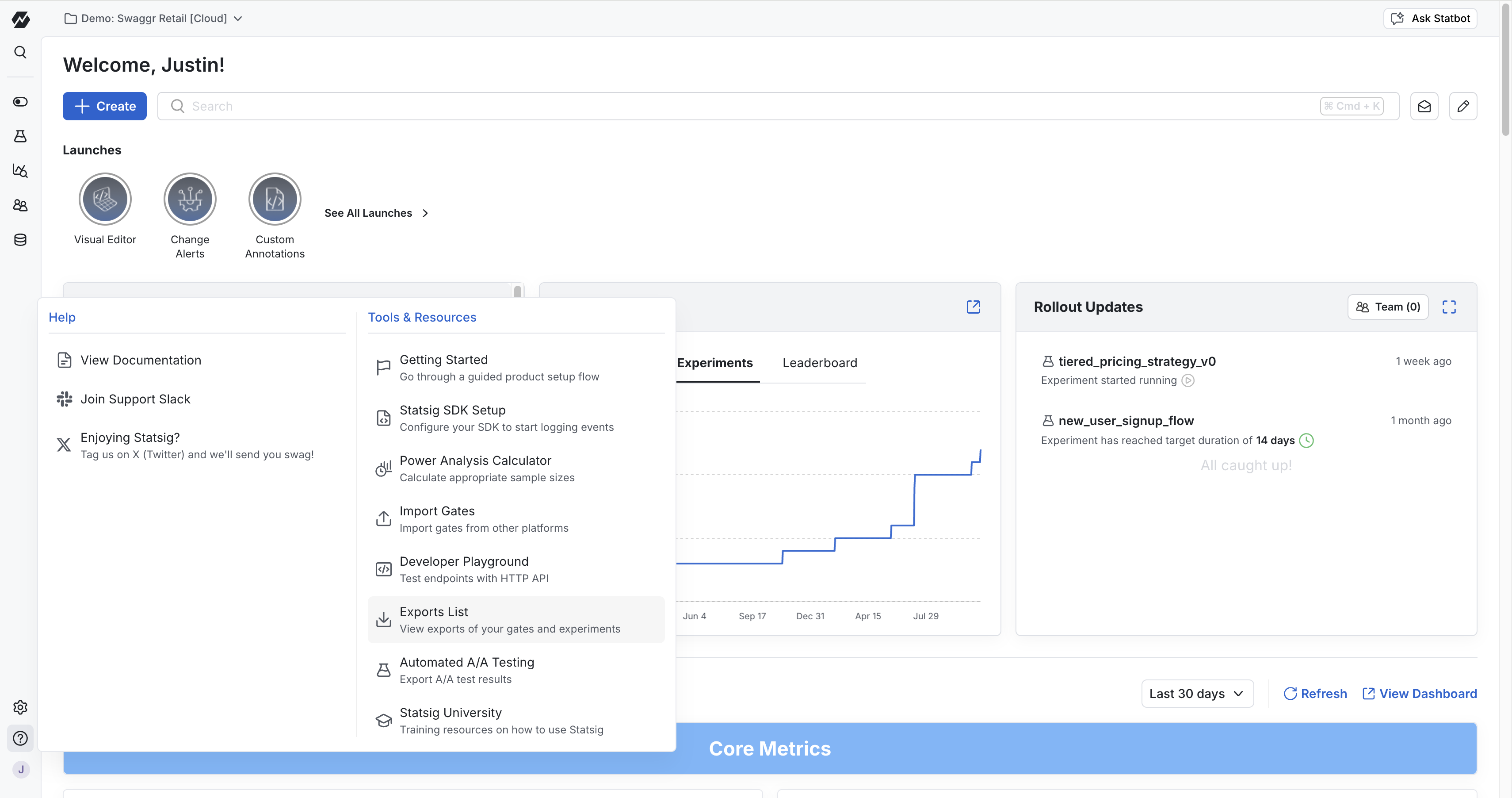
1. Go to Statsig Console
2. Navigate to the Help and Tools Section on the side navigation bar
3. Go to “Exports List”
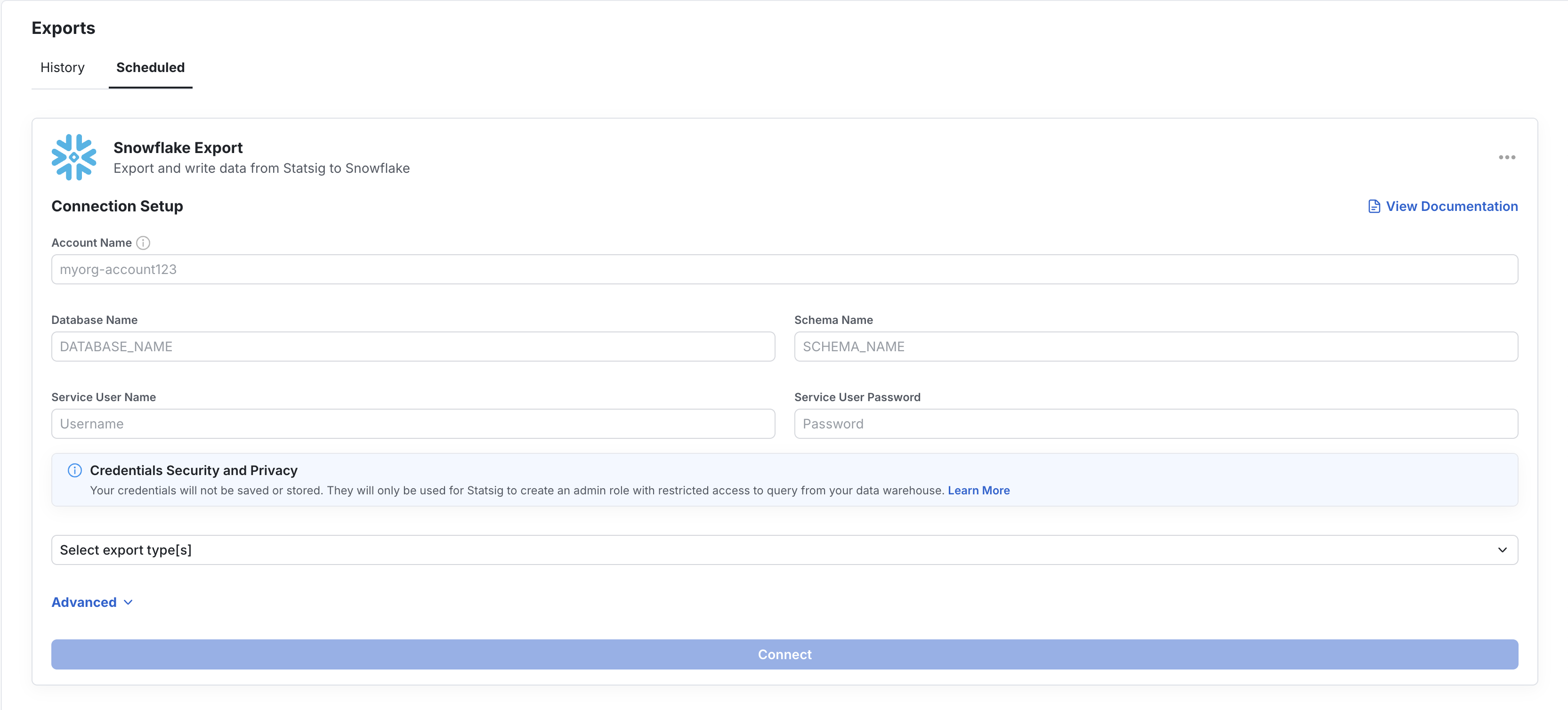
 On the Exports page, you will find an Export History tab and a Schedule Export tab. The Export History tab shows you a list of all previous experimentation exports triggered from the Experiment Results page. To understand how to export one-off experimentation results, check out the documentation [here](/integrations/export_results).
Under the Scheduled Export tab, you will be prompted to set up a data warehouse connection. You will be required to set up connections with necessary credentials and grant Statsig Read, Write, and Delete permissions. Check out the [Connection Set Up](/integrations/data-imports/snowflake.mdx) page for more information.
On the Exports page, you will find an Export History tab and a Schedule Export tab. The Export History tab shows you a list of all previous experimentation exports triggered from the Experiment Results page. To understand how to export one-off experimentation results, check out the documentation [here](/integrations/export_results).
Under the Scheduled Export tab, you will be prompted to set up a data warehouse connection. You will be required to set up connections with necessary credentials and grant Statsig Read, Write, and Delete permissions. Check out the [Connection Set Up](/integrations/data-imports/snowflake.mdx) page for more information.
 ## Table Schema
Statsig will allow you to export both Exposures and Events to your warehouse. During the set up process, we will prompt you to set up a table with the following schema:
### Exposures
| Field name | Type | Mode |
| -------------------------- | --------- | -------- |
| company\_id | STRING | NULLABLE |
| unit\_id | STRING | NULLABLE |
| unit\_type | STRING | NULLABLE |
| exposure\_type | STRING | NULLABLE |
| name | STRING | NULLABLE |
| rule | STRING | NULLABLE |
| experiment\_group | STRING | NULLABLE |
| first\_exposure\_utc | TIMESTAMP | NULLABLE |
| first\_exposure\_pst\_date | DATE | NULLABLE |
| as\_of\_pst\_date | DATE | NULLABLE |
| percent | FLOAT | NULLABLE |
| rollout | INTEGER | NULLABLE |
| user\_dimensions | STRING | NULLABLE |
| inserted\_at | TIMESTAMP | NULLABLE |
| rule\_name | STRING | NULLABLE |
| group\_id | STRING | NULLABLE |
| non\_analytics | BOOLEAN | NULLABLE |
### Events
| Field name | Type | Mode |
| ----------------- | --------- | -------- |
| user\_id | STRING | NULLABLE |
| stable\_id | STRING | NULLABLE |
| custom\_ids | STRING | NULLABLE |
| timestamp | TIMESTAMP | NULLABLE |
| event\_name | STRING | NULLABLE |
| event\_value | STRING | NULLABLE |
| user\_object | STRING | NULLABLE |
| statsig\_metadata | STRING | NULLABLE |
| company\_metadata | STRING | NULLABLE |
## Troubleshooting Exports
If you set up an Export flow in Statsig, Statsig can notify you if your data connection is failing. To enable notifications, go to Settings → My Account → Email Notifications → Edit and click Alerts to subscribe to these notifications.
If your Exports are failing, make sure your warehouse is connected with up-to-date credentials and the necessary Read, Write, and Delete permissions.
## Table Schema
Statsig will allow you to export both Exposures and Events to your warehouse. During the set up process, we will prompt you to set up a table with the following schema:
### Exposures
| Field name | Type | Mode |
| -------------------------- | --------- | -------- |
| company\_id | STRING | NULLABLE |
| unit\_id | STRING | NULLABLE |
| unit\_type | STRING | NULLABLE |
| exposure\_type | STRING | NULLABLE |
| name | STRING | NULLABLE |
| rule | STRING | NULLABLE |
| experiment\_group | STRING | NULLABLE |
| first\_exposure\_utc | TIMESTAMP | NULLABLE |
| first\_exposure\_pst\_date | DATE | NULLABLE |
| as\_of\_pst\_date | DATE | NULLABLE |
| percent | FLOAT | NULLABLE |
| rollout | INTEGER | NULLABLE |
| user\_dimensions | STRING | NULLABLE |
| inserted\_at | TIMESTAMP | NULLABLE |
| rule\_name | STRING | NULLABLE |
| group\_id | STRING | NULLABLE |
| non\_analytics | BOOLEAN | NULLABLE |
### Events
| Field name | Type | Mode |
| ----------------- | --------- | -------- |
| user\_id | STRING | NULLABLE |
| stable\_id | STRING | NULLABLE |
| custom\_ids | STRING | NULLABLE |
| timestamp | TIMESTAMP | NULLABLE |
| event\_name | STRING | NULLABLE |
| event\_value | STRING | NULLABLE |
| user\_object | STRING | NULLABLE |
| statsig\_metadata | STRING | NULLABLE |
| company\_metadata | STRING | NULLABLE |
## Troubleshooting Exports
If you set up an Export flow in Statsig, Statsig can notify you if your data connection is failing. To enable notifications, go to Settings → My Account → Email Notifications → Edit and click Alerts to subscribe to these notifications.
If your Exports are failing, make sure your warehouse is connected with up-to-date credentials and the necessary Read, Write, and Delete permissions.