Teams are an Enterprise-only feature. If you are on the Developer or Pro tiers, this guide will not apply to you. To upgrade to Enterprise, feel free to reach out to our team here.
Overview
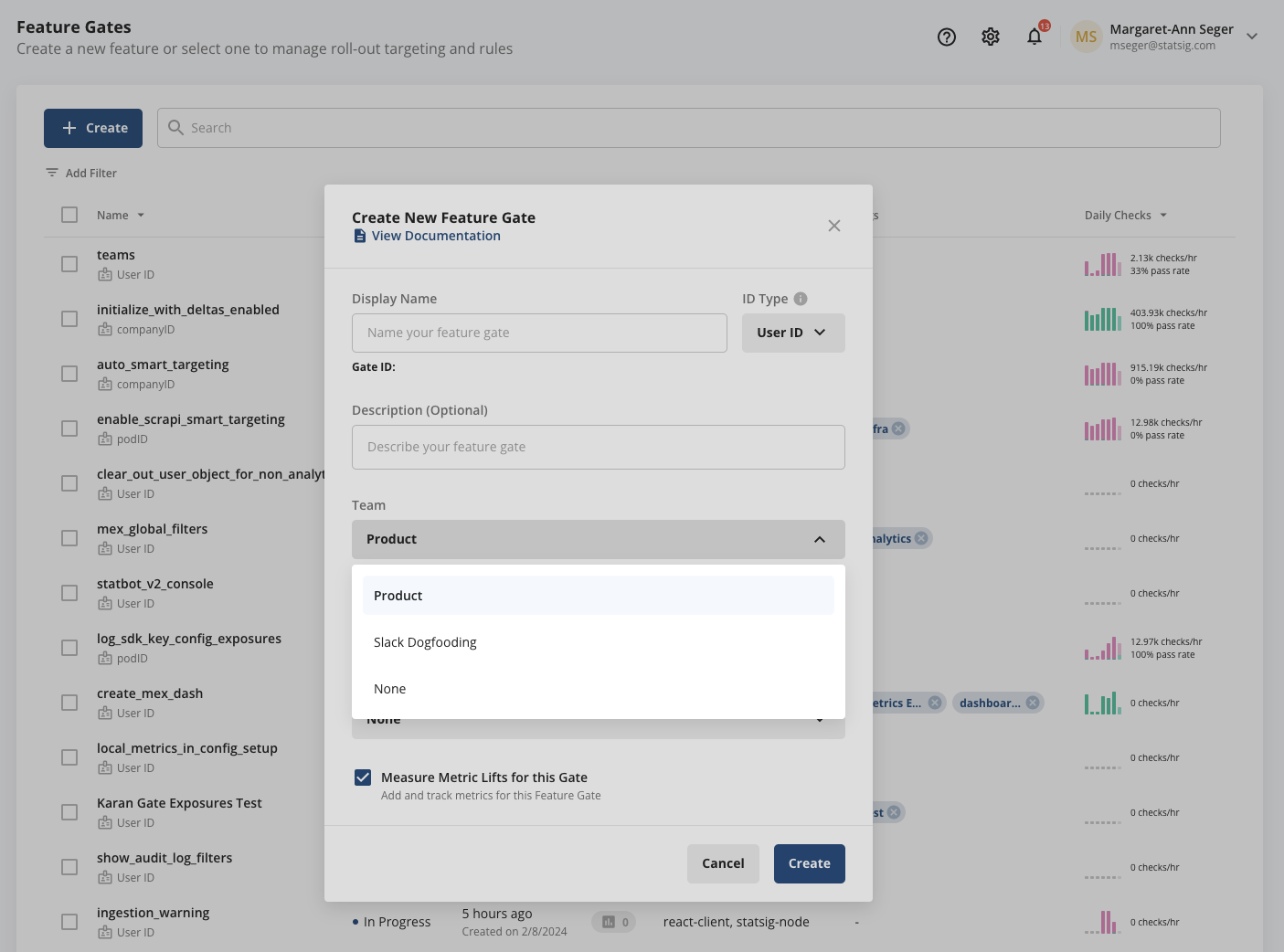
For larger organizations, the Teams feature enables an organizational and settings/ permissions layer on top of a Project. Teams are configured at the Project (not Organization) level, and are default-editable by all Project Admins. Once teams are configured and a user is assigned to a team, any config (gates/ experiments/ metrics, etc.) they create will be associated with the team they belong to, and will inherit the settings of that team. Users who are members of multiple teams will have the choice of which team to associate their config with at creation time.Creating Teams
To create a team, navigate to Settings -> People -> Teams. Create a new team via the +Create button, where you’ll be asked to name the team and add members. You can add/ remove members from a team at any time, not just at initial team creation. Each team has a Members page and a Settings page. Within Members you can see all members of the team, including the team members project role and team role (which can be member or admin). Team members can be promoted or removed.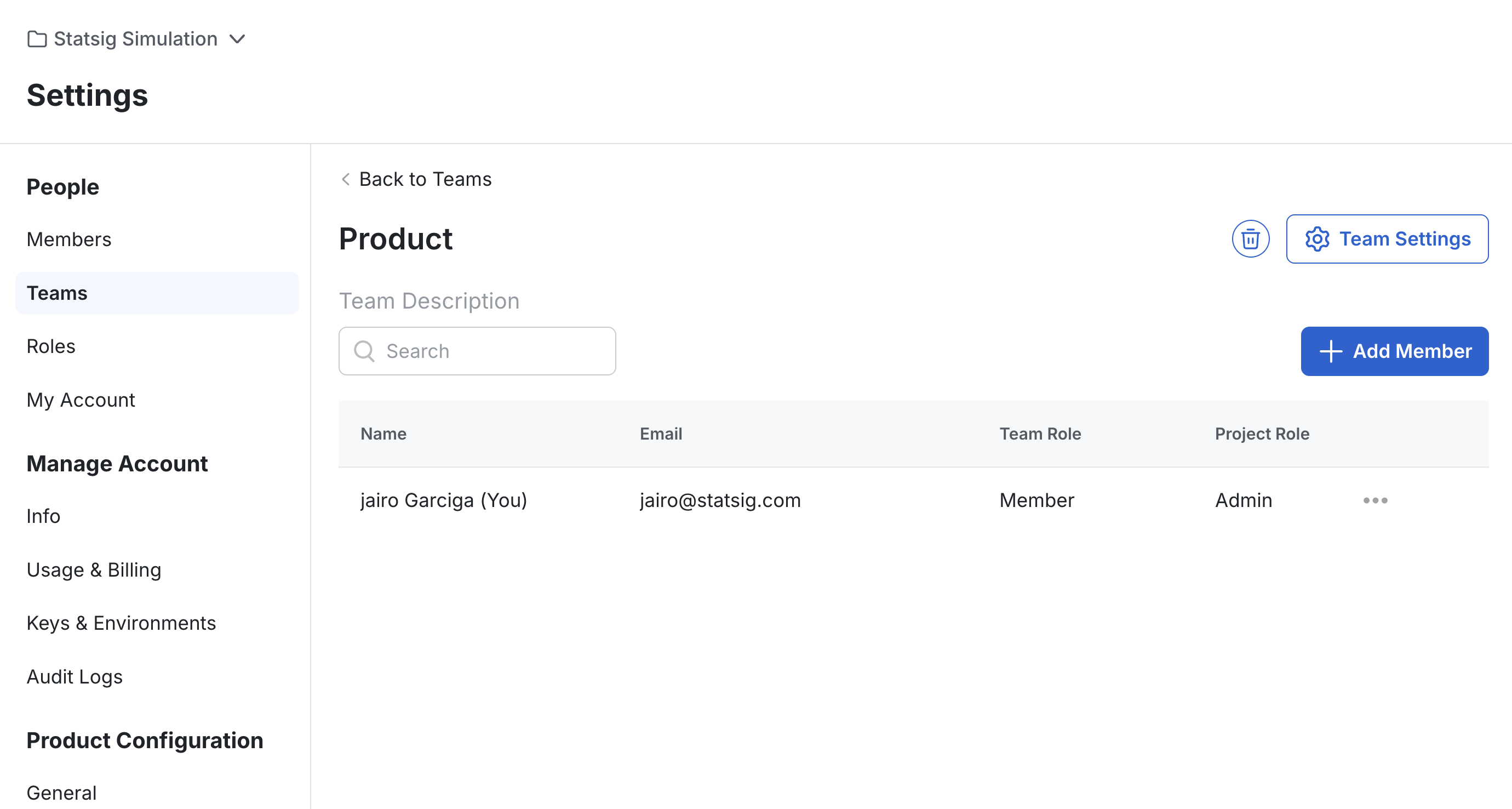
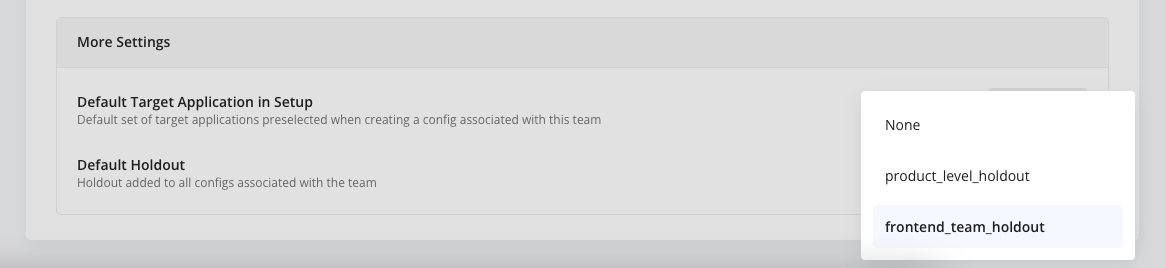
Configuring Team Settings
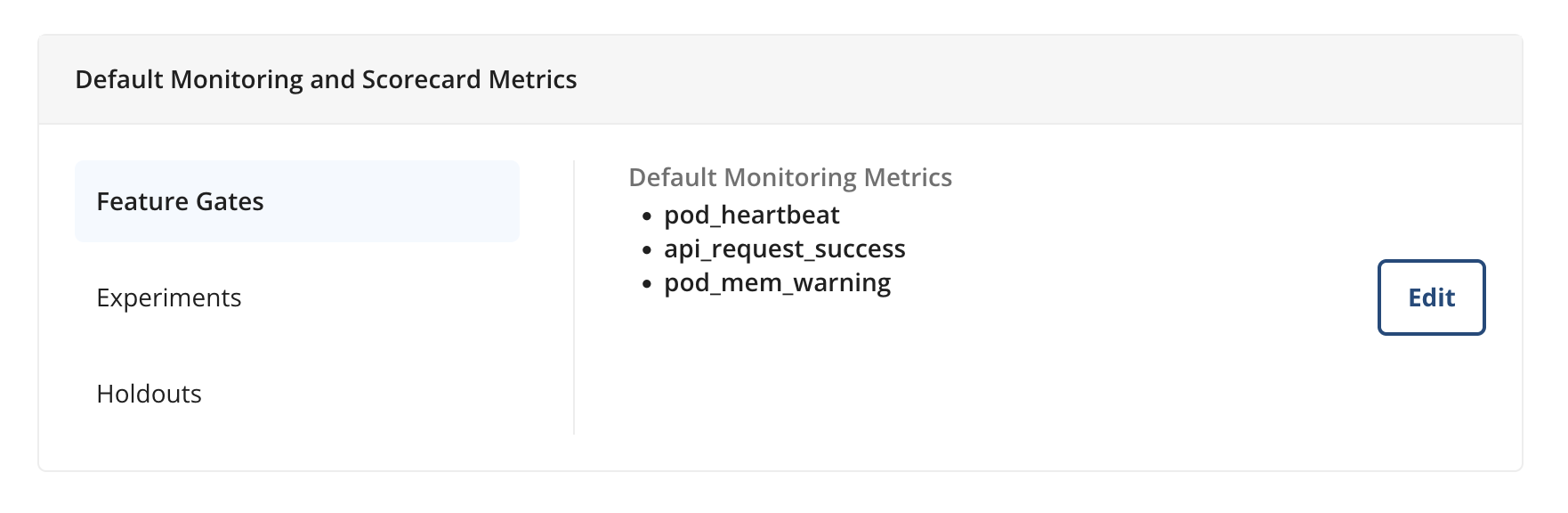
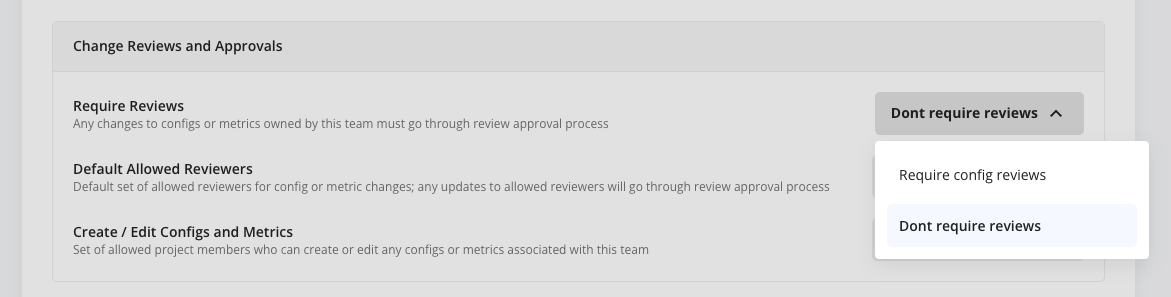
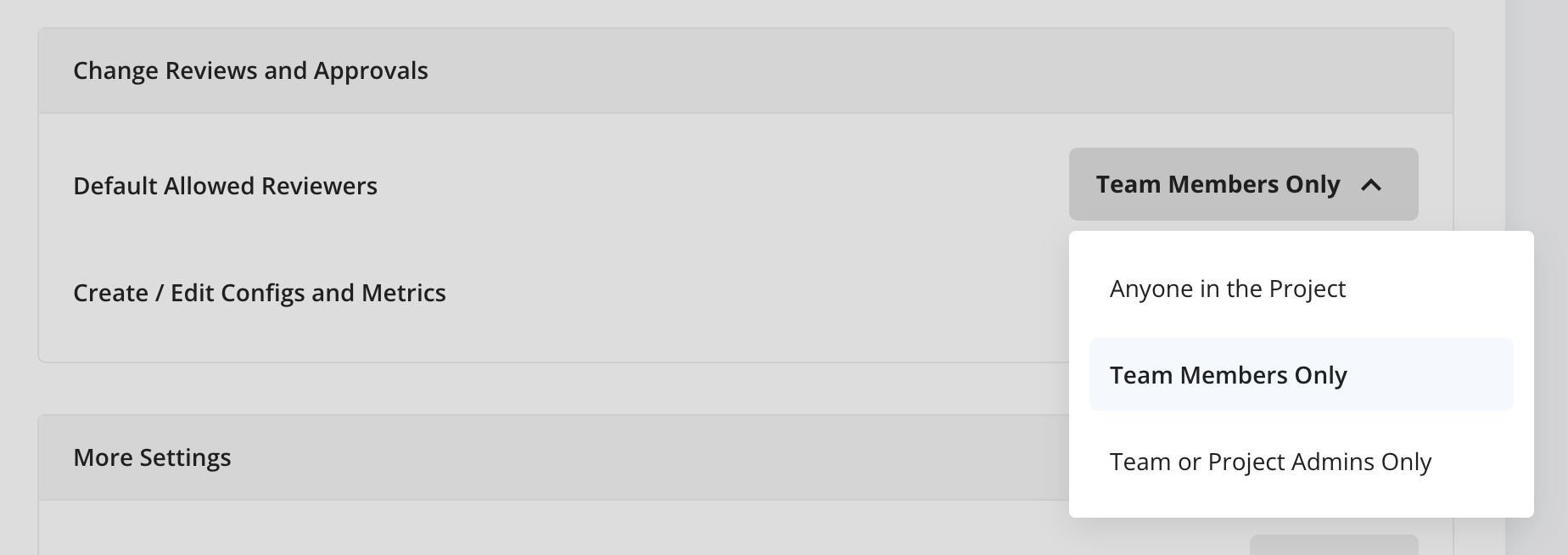
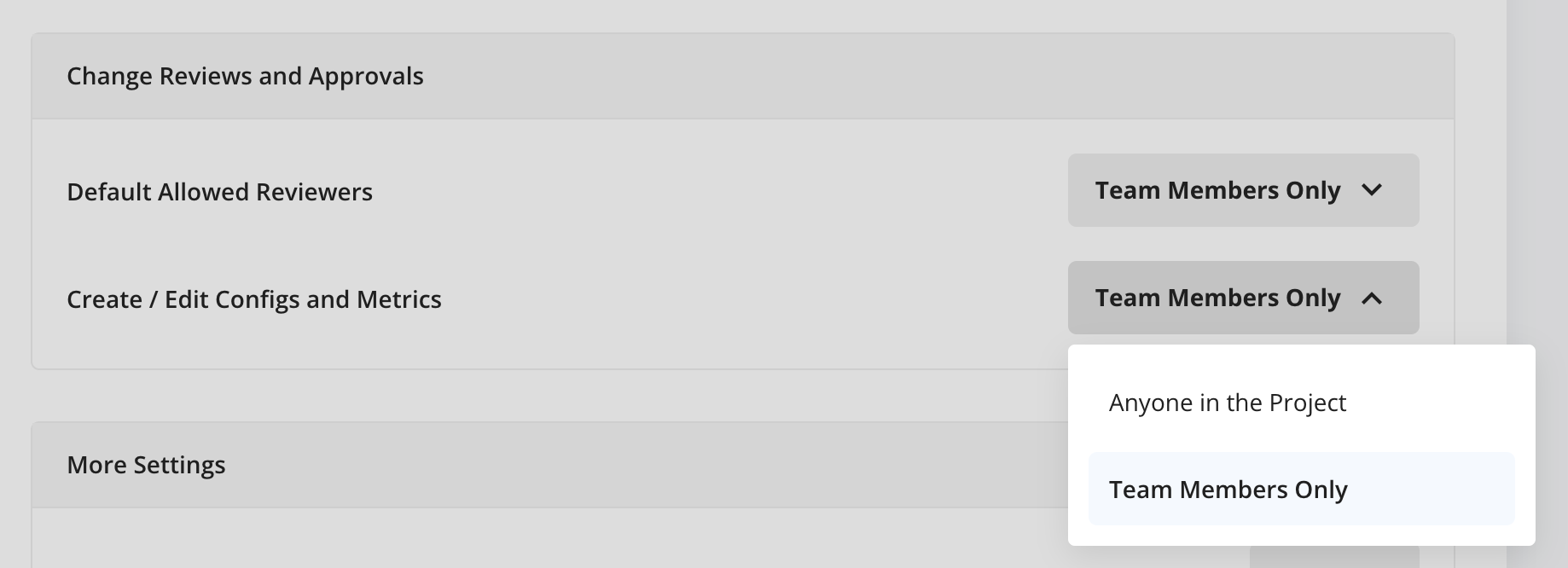
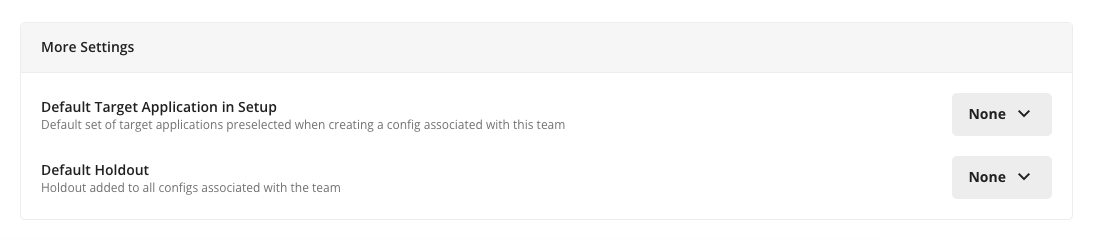
At the Project-level, you can require all config creations are associated with a team via the “Require teams” setting under Settings -> Product Configuration -> General. Note that this will block anyone who isn’t yet assigned to a team from creating a config, so should only be enabled after all members of the project have been added to (at least) one team.
How Teams are Used Throughout the Console
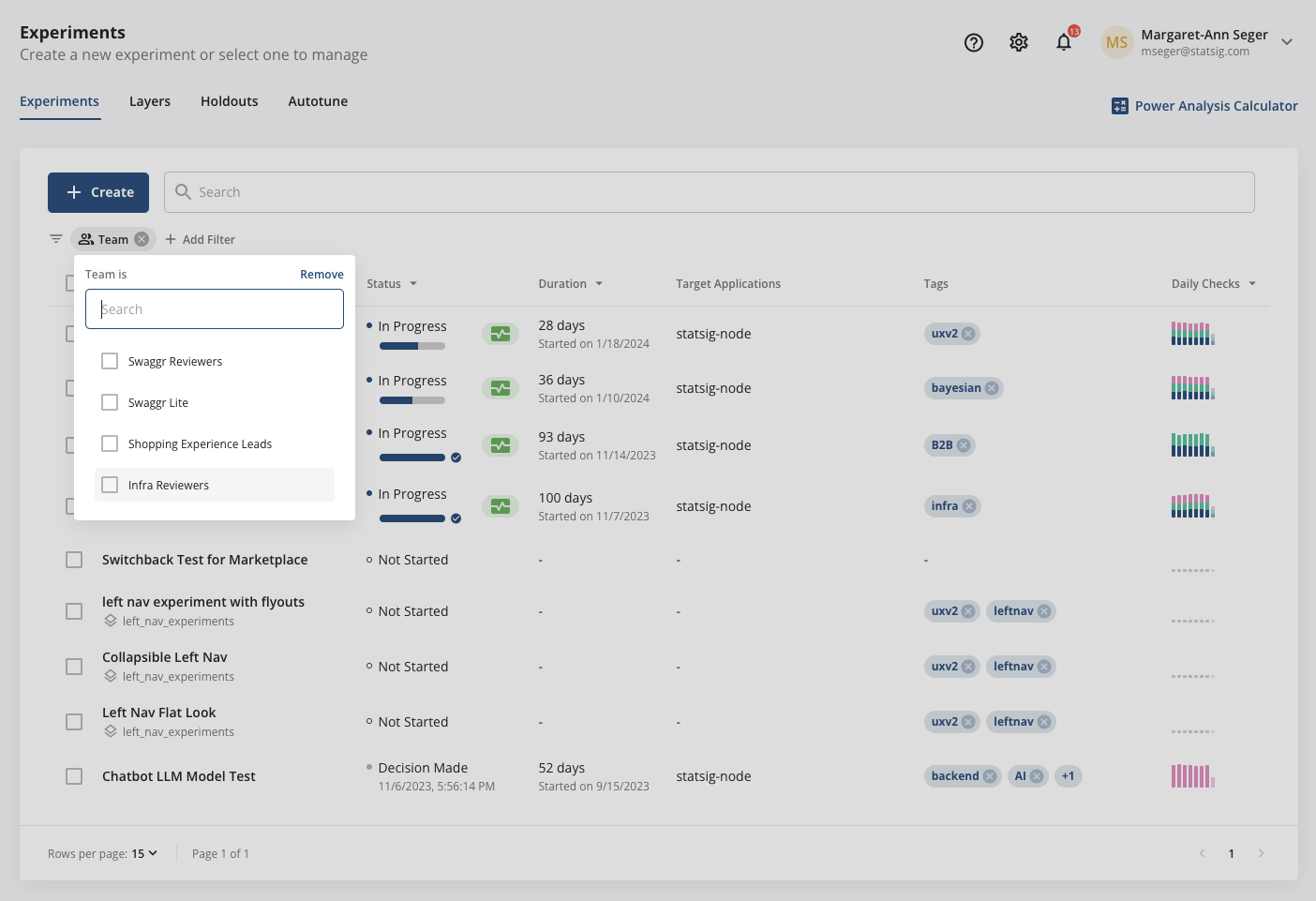
Once a user is associated with a team, every config they create will now be default-associated with their team. For users on multiple teams, they will be able to choose which team to associate their config with at creation time. This will apply the team’s relevant settings to that config.