Add a rule to a dynamic config
To add new user targeting rules to a dynamic config,- Log into the Statsig console at https://console.statsig.com
- On the left-hand navigation panel, select Dynamic Configs
- Select the dynamic config where you want to add a rule
- Click the Add Targeting button
- Click the Add New Rule button
-
Select the criteria for identifying the users you want to target:
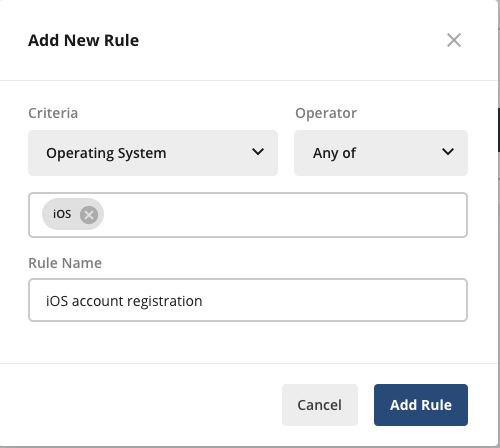
- You can target users based on common attributes such as their operating system as shown in the following example
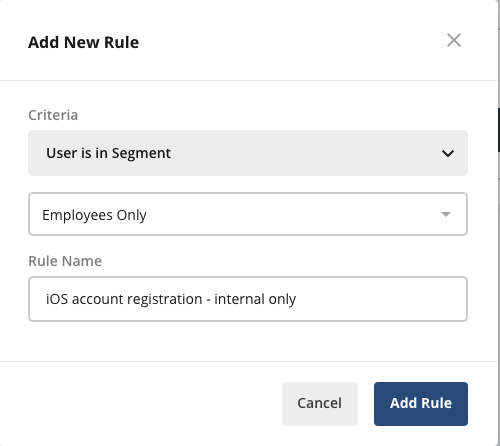
- You can target users in a defined segment as shown in the following example
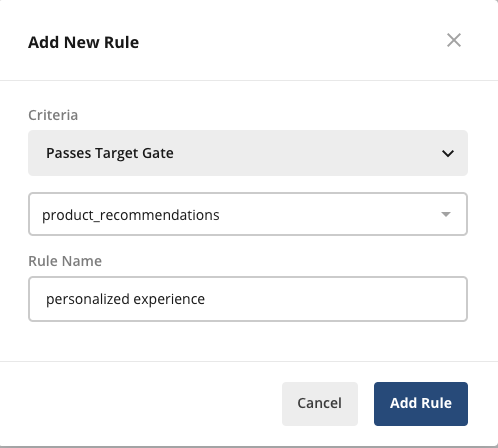
- You can target users who are eligible for a specific feature flag as shown in the following example; this ensures that the dynamic config is activated only for users who’re exposed to the target feature flag
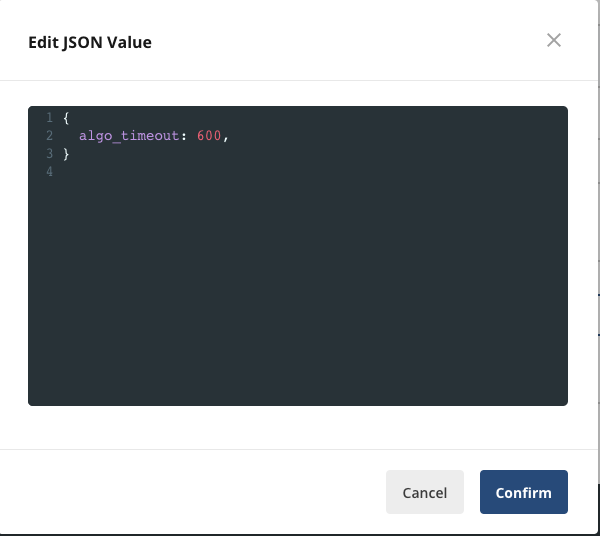
- To complete the dynamic config, click on the Edit link to open the JSON configuration editor. In the editor, type the configuration parameters and values that your application should receive and click Confirm